How To Configure A Newsreader
Provider reviews, pricing comparisons, and practical setup guidance.
Current Recommendations
Live from our provider database. This block stays synced across pages as rankings change.
- NewsDemon Score: 9.4/10 • Backbone: UsenetExpress (independent) • Pricing: From $3/mo metered; $12.95/mo monthly unlimited; $7/mo quarterly; $6/mo annual
- Frugal Usenet Score: 9.4/10 • Backbone: Netnews-linked hybrid + bonus path • Pricing: $5.99/mo; ~$60/yr bundles shown with block add-on
- UsenetExpress Score: 9.3/10 • Backbone: UsenetExpress (independent) • Pricing: $10/mo, $90/yr, plus block options
Technical refresh: This article has been normalized for current Usenet workflows (provider reliability, retention/completion behavior, and modern client/indexer automation patterns).
How to Configure a Newsreader
Newsreaders are the apps that connect you to your Usenet provider. A clean configuration gives you better reliability, safer connections, and fewer download failures.
This guide breaks setup into clear sections and step-by-step boxes so you can configure any major newsreader quickly.
Core Settings You Need for Any Newsreader
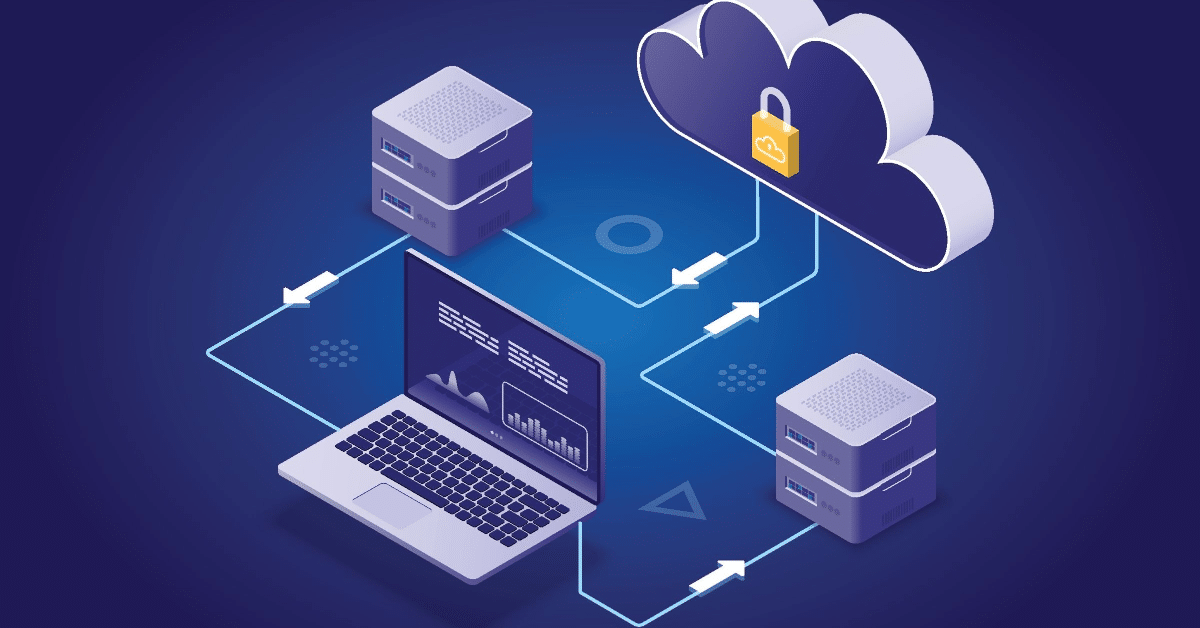
Every newsreader asks for the same base credentials. Keep these from your provider account ready before you begin.
Host: Your Usenet server address.
Port: Usually 563 (SSL) or 119 (non-SSL).
Username / Password: Your provider login credentials.
Connections: Set this to your plan limit (start lower and tune up).
SSL: Enable whenever possible for encrypted traffic.
Optional tuning: Limits, queue behavior, and UI preferences.
Setting Up SABnzbd
Estimated time: 5 minutes
Step 1: Download SABnzbd and install it.
Step 2: Open SABnzbd and go to Settings (gear icon).
Step 3: In Servers, add host, username/password, SSL port, and connection count from your provider.
Step 4: Click Test Server, then Add Server.
Setting Up NZBGet
Estimated time: 5 minutes
Step 1: Download and install NZBGet.
Step 2: Open NZBGet and click Settings.
Step 3: Under NEWS-SERVERS, enter host, port, credentials, and enable SSL.
Step 4: Click Test Connection and then Save all Settings.
Setting Up Newsbin Pro
Estimated time: 5 minutes
Step 1: Install Newsbin.
Step 2: Open Options > Servers.
Step 3: Add server address, credentials, and SSL port 563 (or 119 non-SSL).
Step 4: Click OK to save and connect.
Setting Up GrabIt
Estimated time: 5 minutes
Step 1: Install GrabIt.
Step 2: Run the setup wizard and enter profile name, hostname, port, and credentials.
Step 3: Enable Encrypted server connection (SSL).
Step 4: Click Finish to complete setup.
Setting Up NewsLeecher
Estimated time: 5 minutes
Step 1: Download from the official NewsLeecher site.
Step 2: Open the app and click Add Server.
Step 3: Enter nickname, server address, credentials, and SSL port.
Step 4: Enable Use Encrypted Server Connections (SSL), then click Apply and OK.
Frequently Asked Questions
What is a newsreader, and why does proper setup matter?
A newsreader is the client that connects to your Usenet provider. Correct setup improves reliability, speed, and security.
What details do I need to configure a newsreader?
You need host, port, username, password, and connection limits from your provider account.
How do I enable SSL?
Use port 563 and enable the SSL/encryption option in the server settings panel of your app.
Can I use multiple newsreaders with one account?
Yes, as long as the combined active connections stay within your provider plan limit.
What causes most setup failures?
Wrong host, bad credentials, incorrect port, or enabling SSL with a non-SSL port are the most common issues.