Set Up Usenet On Synology Nas For Direct Access
Provider reviews, pricing comparisons, and practical setup guidance.
Current Recommendations
Live from our provider database. This block stays synced across pages as rankings change.
- NewsDemon Score: 9.4/10 • Backbone: UsenetExpress (independent) • Pricing: From $3/mo metered; $12.95/mo monthly unlimited; $7/mo quarterly; $6/mo annual
- Frugal Usenet Score: 9.4/10 • Backbone: Netnews-linked hybrid + bonus path • Pricing: $5.99/mo; ~$60/yr bundles shown with block add-on
- UsenetExpress Score: 9.3/10 • Backbone: UsenetExpress (independent) • Pricing: $10/mo, $90/yr, plus block options
Set Up Usenet on Synology NAS (Modern DSM Guide)
Synology is a great Usenet host when you set paths and permissions correctly. This guide uses modern DSM and Container Manager workflows so your downloader and ARR apps run reliably with direct NAS access.

Goal: download and process directly on NAS storage, avoid manual file moves, and keep imports stable.
1. Before You Start
- DSM 7.x with Container Manager available.
- Usenet provider credentials (host, user, pass, SSL port).
- At least one downloader image (SABnzbd or NZBGet).
- Enough storage and a clear folder structure.
Important: path consistency matters more than almost anything else. If container paths differ between apps, imports break.
2. Create Shared Folders First
In DSM Shared Folder settings, create:
Give read/write access to the account your containers run as.
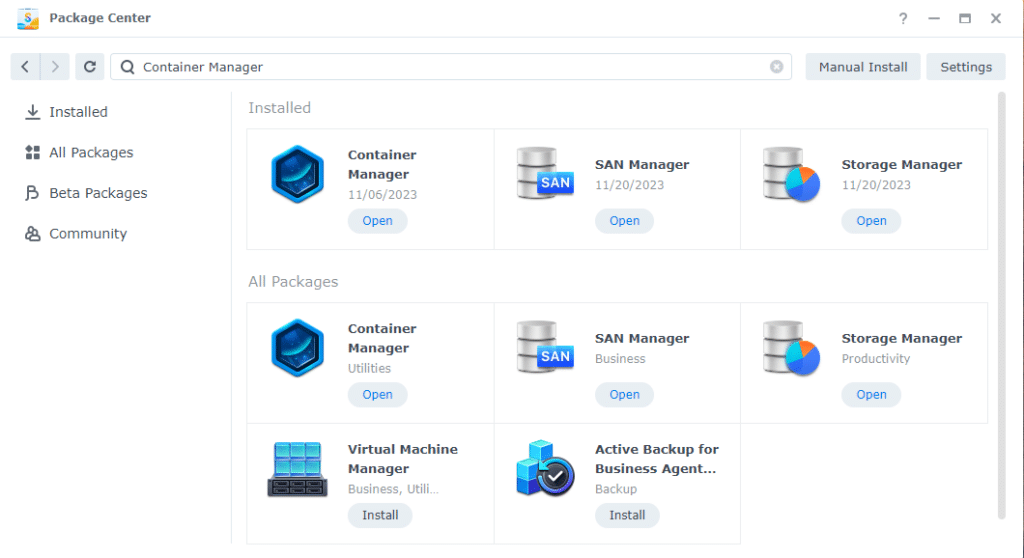
3. Install and Open Container Manager
- Open Package Center.
- Install Container Manager.
- Open it and verify Docker engine status is healthy.
4. Pull Downloader Image
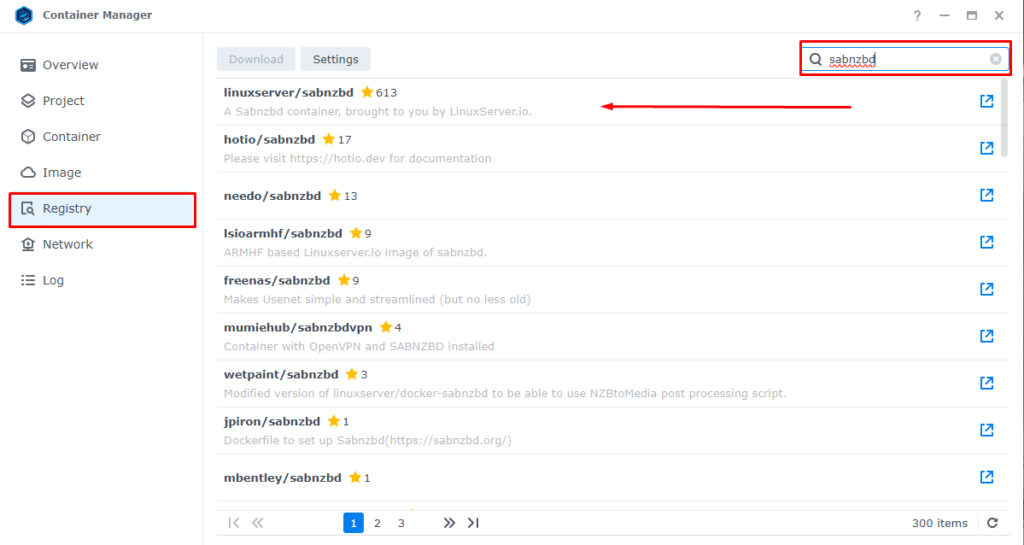
Use Registry to search and download your preferred downloader image.
- SABnzbd:
linuxserver/sabnzbd - NZBGet:
linuxserver/nzbget(if still used in your workflow)
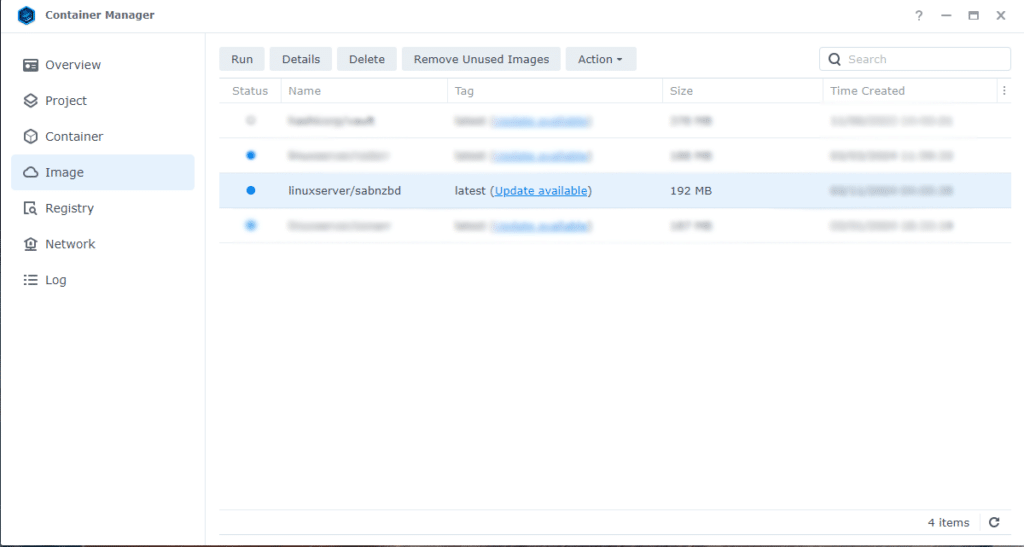
5. Run Container with Correct Mapping
When launching the container, set:
6. Environment Variables (PUID, PGID, TZ)
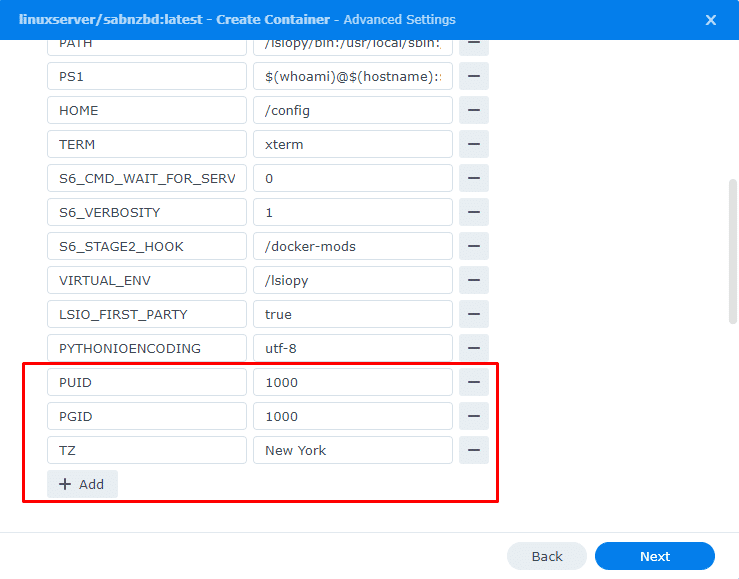
Set container user/group and timezone to match your NAS environment:
- PUID: user id of your NAS account
- PGID: group id of your NAS account
- TZ: timezone string (example:
America/Chicago)
Correct IDs prevent permission errors when writing downloads or importing files.
7. Configure Downloader Internals
- Open downloader web UI via
http://NAS_IP:PORT. - Add Usenet server with SSL enabled (usually port 563).
- Set incomplete and complete folders under
/downloads. - Run a test job and verify files write correctly.
8. Add ARR Apps (Recommended)
For full automation, add Prowlarr + Sonarr + Radarr in Container Manager.
If you want an easier template-driven deployment style, check our Unraid Usenet Setup Guide.
Frequently Asked Questions
Why use Container Manager on Synology for Usenet?
What causes most Synology Usenet setup issues?
Can I run SABnzbd and NZBGet together?
How do I access the downloader web UI?
http://192.168.1.50:8080.